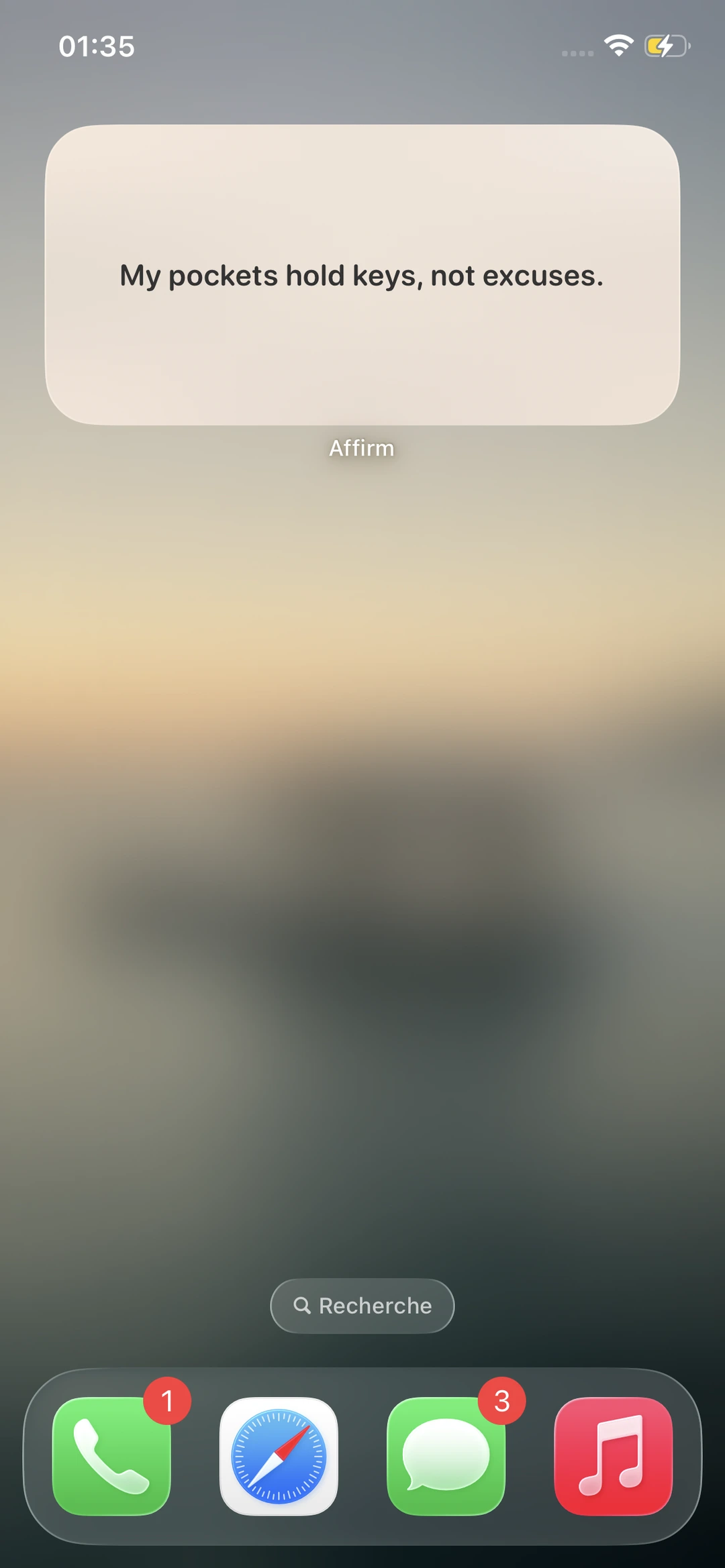
What the Affirm widget does
Once placed on your screen, the Affirm widget shows a different affirmation each day, picked from the categories you enabled in-app. No need to open the application — you read it at a glance, in passing.
The widget comes in two sizes: a medium square (ideal for the Home Screen, alongside your other widgets) and a vertical strip for the Lock Screen (since iOS 16). Both are free and included in the app.
Add the widget to the Home Screen
- Download and install the Affirm app from the App Store first, and open it once to set your preferred categories.
- Go back to the iPhone Home Screen. Long-press (1 second) on an empty area or an icon — apps start to wiggle.
- Tap the « + » button in the top-left corner.
- Type « Affirm » in the search bar at the top, or scroll through the widget list.
- Pick Affirm, choose a widget size (Small / Medium / Large), then tap « Add Widget ».
- Drag the widget where you want it, and tap « Done » in the top-right to confirm.
Add the widget to the Lock Screen
- Long-press your Lock Screen (Face ID active).
- Tap « Customize » under the screen that appears, then select « Lock Screen ».
- Tap the widgets area just below the time.
- Pick Affirm from the list — choose the strip or rectangle widget depending on the space you have.
- Exit edit mode by tapping « Done » in the top-right.
Widget not showing in the list?
Three possible causes: (1) the Affirm app isn't installed — make sure it's actually on your iPhone; (2) you never opened the app after installing — open it once so iOS detects the widget; (3) your iOS version is below 14 — the version widgets shipped in — update via Settings → General → Software Update.
If after all that the widget still doesn't appear, restart your iPhone (hold the side button + a volume button until the slider appears). In 95% of cases, the restart makes it show up.
Customizing what the widget displays
Open the Affirm app, go to Settings → Categories, and enable or disable the categories that should feed your widget. If you enable only « Morning » and « Confidence », the widget will draw from those two. That's your main customization.
Combine widget + notifications
The widget is passive — it shows up when you look at your phone. To go further, enable notifications in Settings → Notifications. You can schedule 1 to 10 reminders per day, on a window you choose. Combined, widget and notifications give you regular exposure without becoming intrusive.